
1.Open control panel (start->control panel)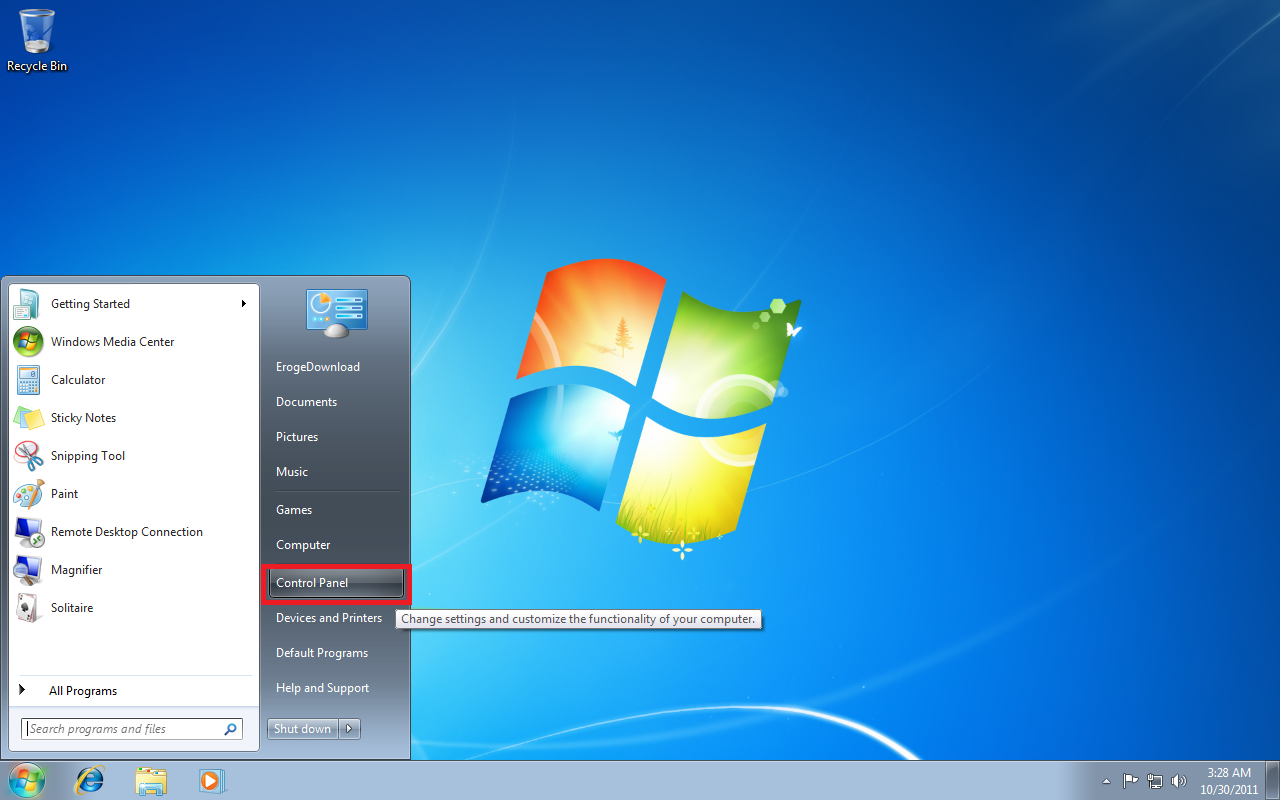
2.Select “Clock, Language and Region”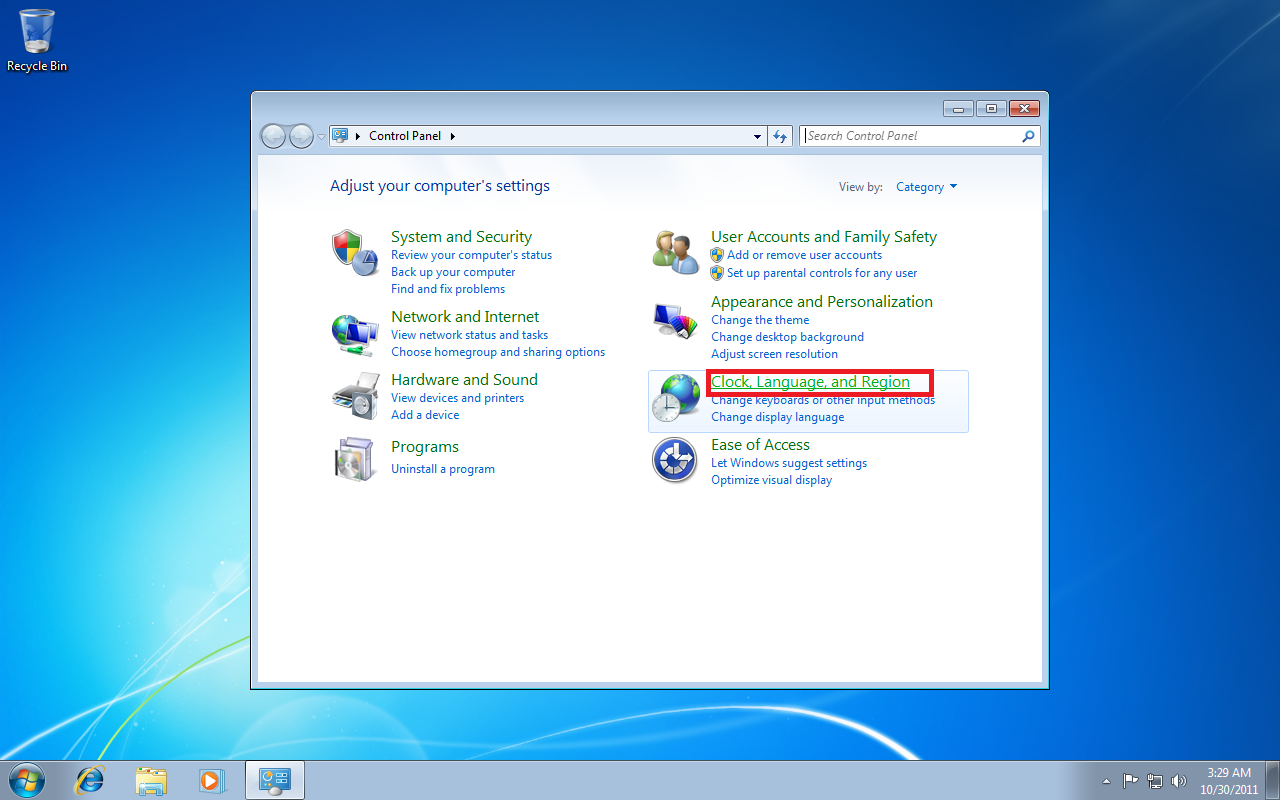
3.Select “Region and Language”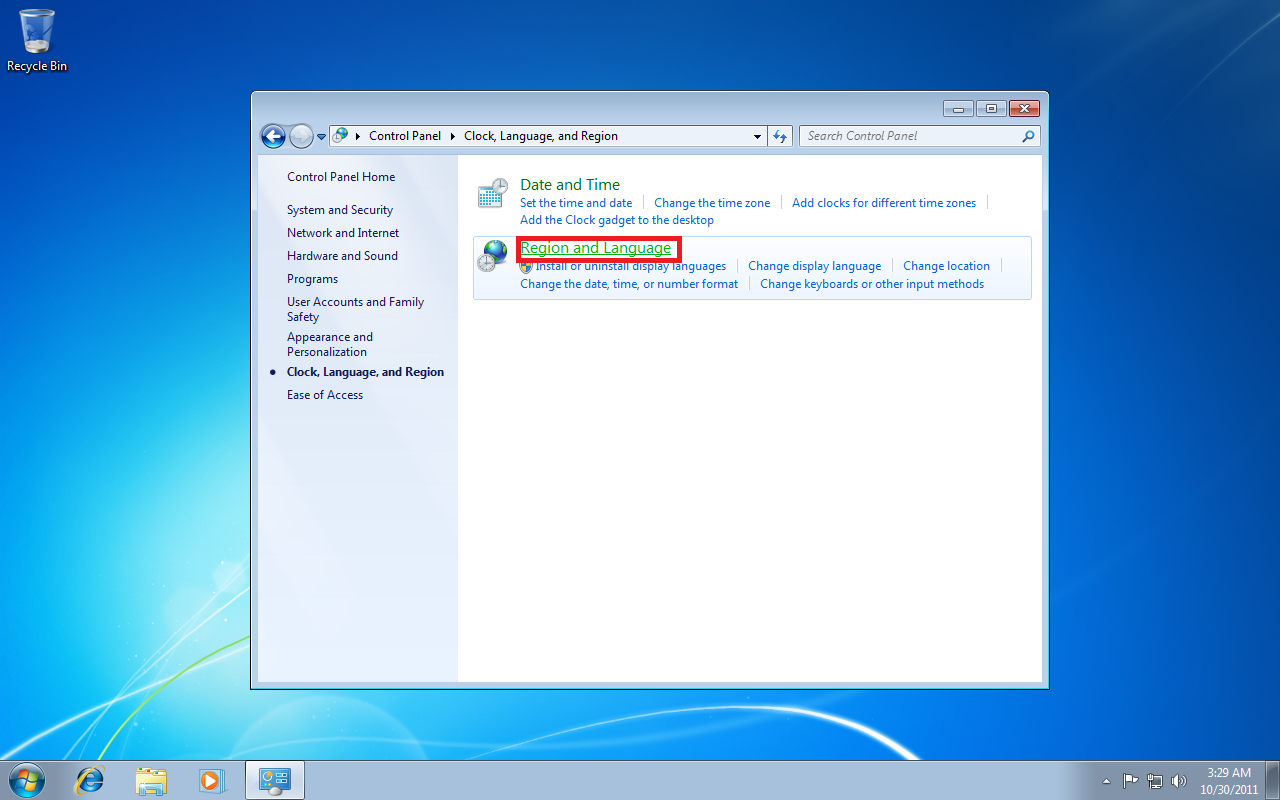
4.Change to “Administrative” tab.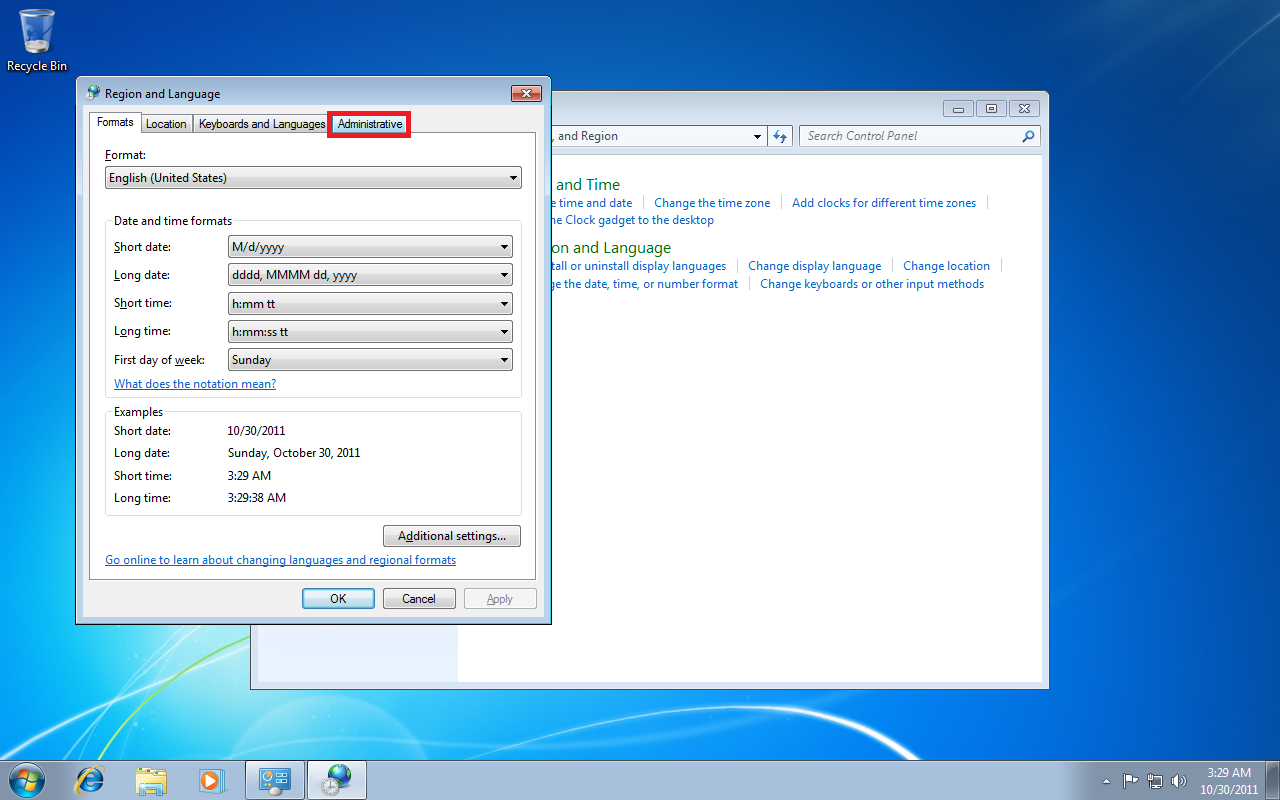
5.Click on “Change system locale”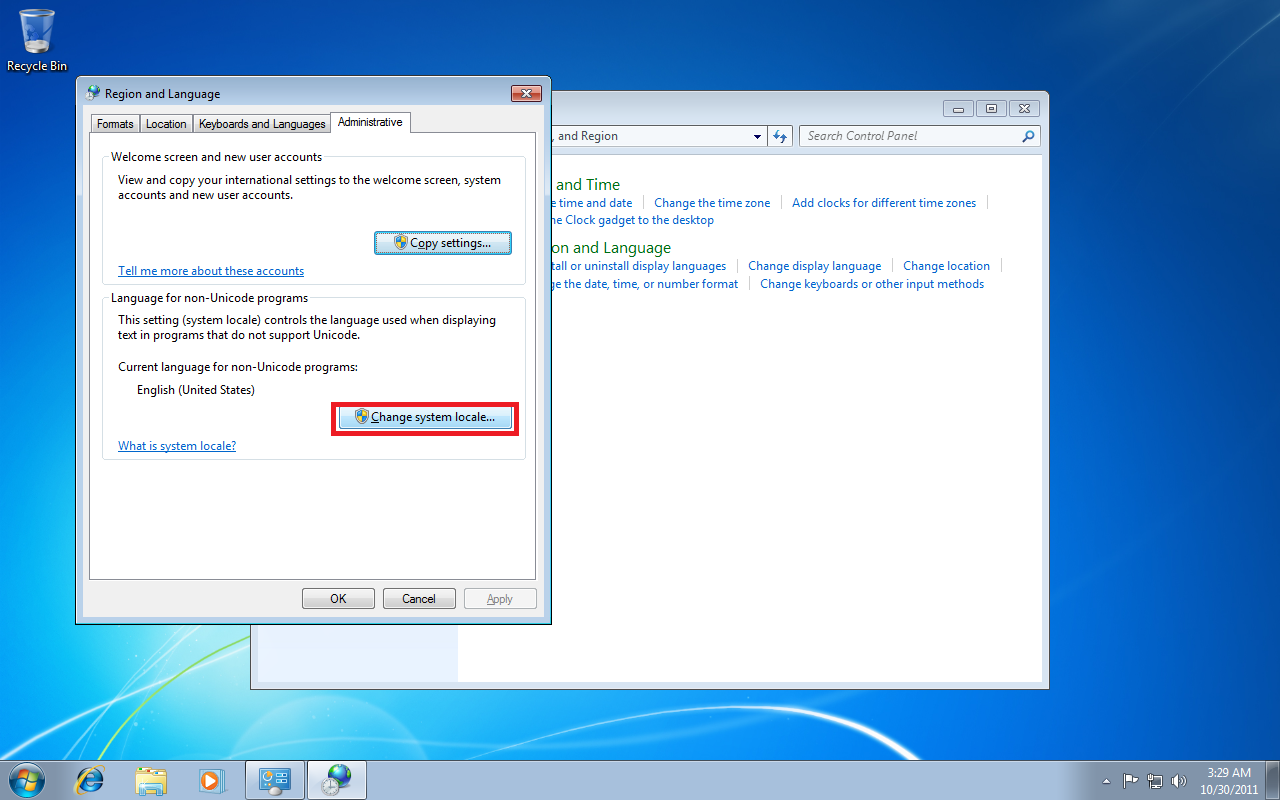
6.Open drop-down menu and select “Japanese(Japan)”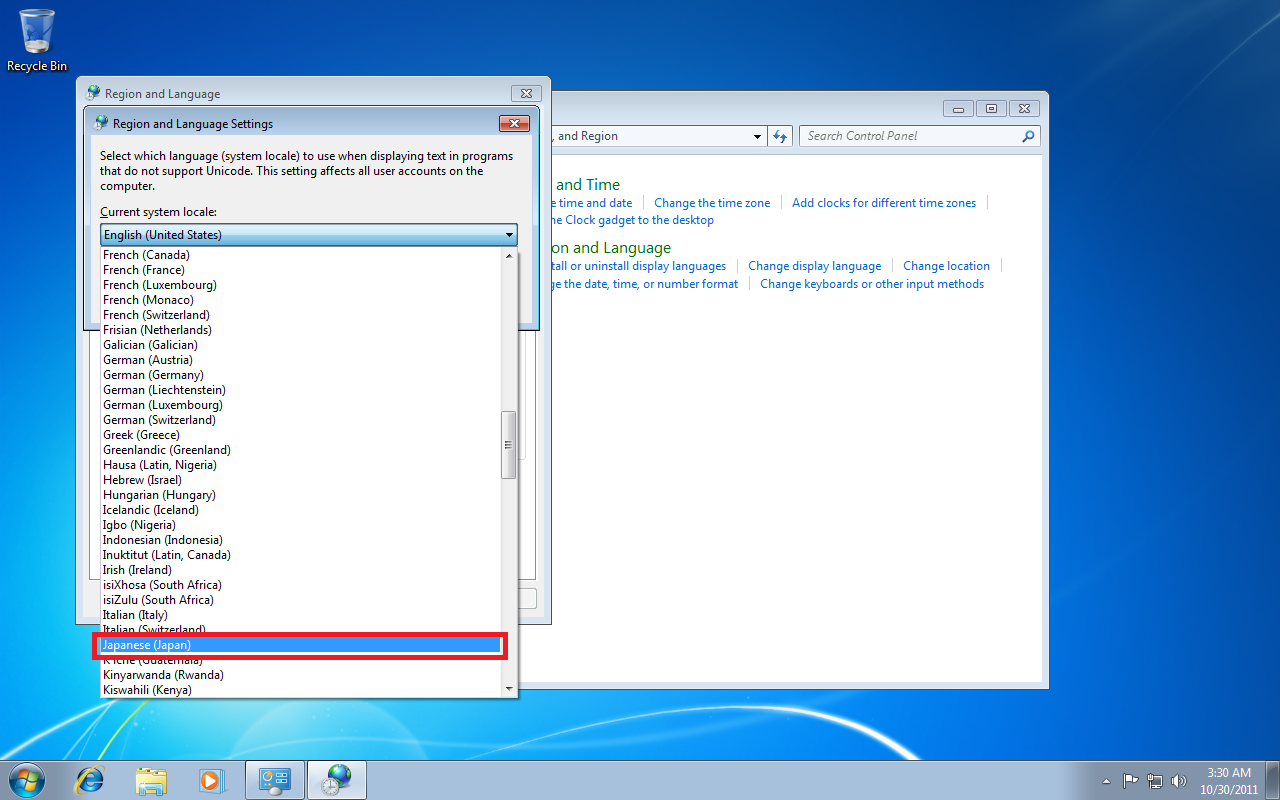
7.Confirm with “Ok”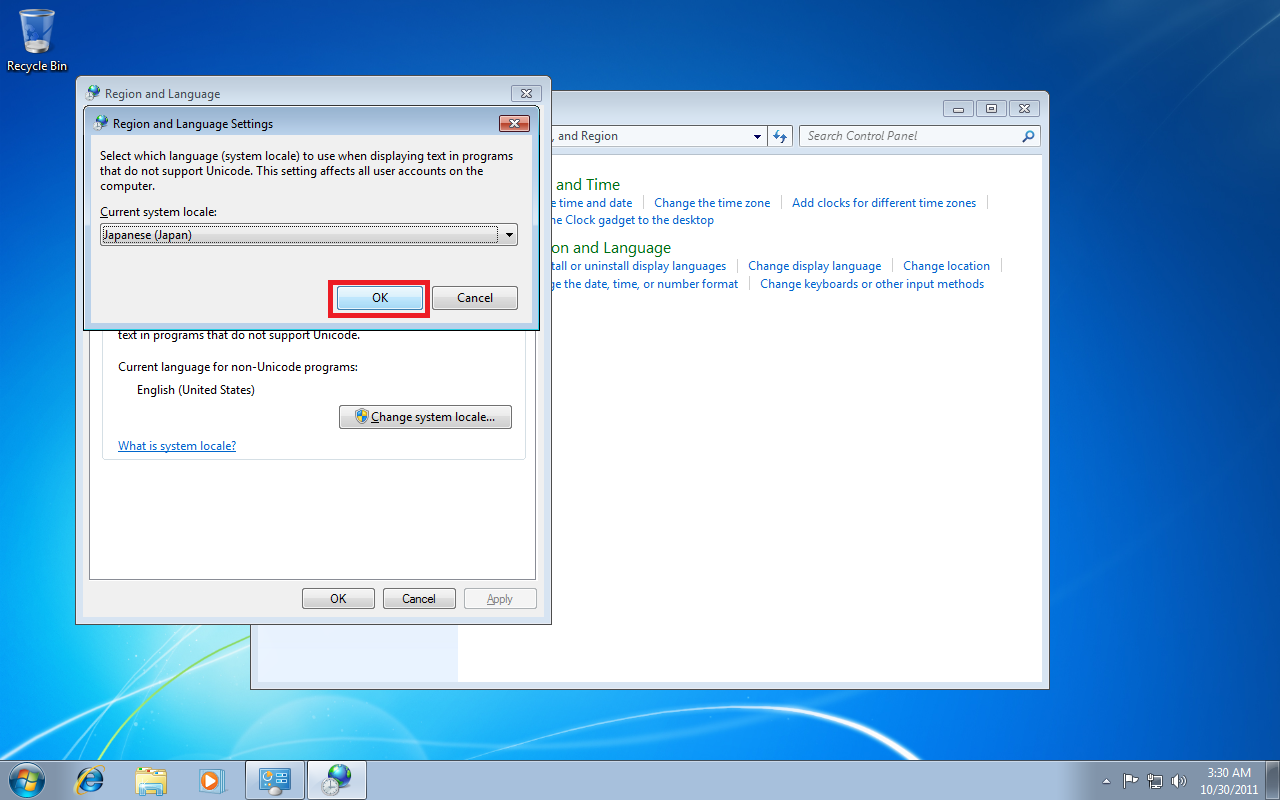
8.Restart windows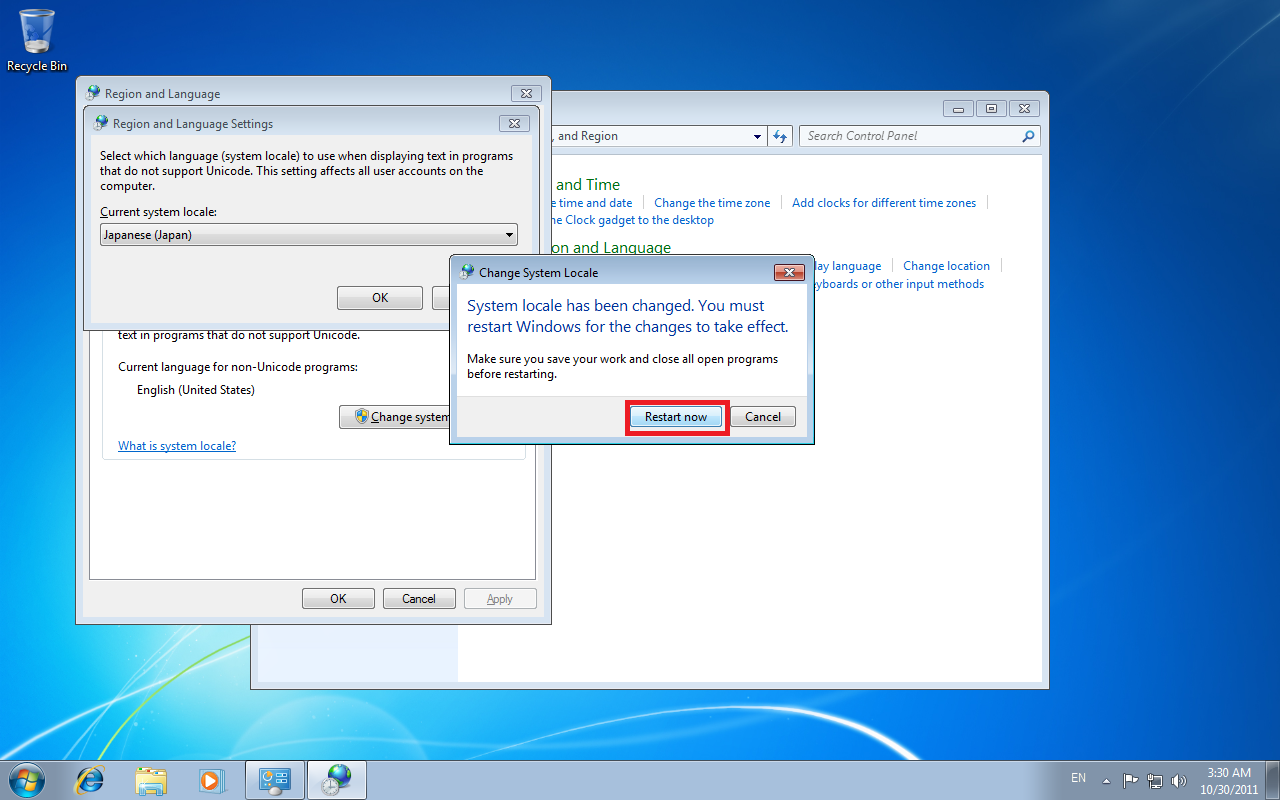
59 comments
Even if we successfully installed a game via AppLocale, Executing the program (even with Applocale) may have different problems, like, Black Screen in the Game Window, Error Unknown in executing the program, or Unstable/Random crash of the game.
AppLocale = changes the system code reader to Kanji/Harigana when just Executing the program, There are lot of case that the Program also Execute other program which cant be read by AppLocale and that will cause Errors.
When We change to Windows JApanese Locale: the default System Directory Separator "/" will be change to its Japanese Default, That means Every PRogram the Program will execute will be in the Proper Address/Directory and the game will run smoothly.
And I tried to use AppLocate too, it wont work if you don't installed them beforehand.
So I suggest to install them first...
Since I'm running Windows 7 should I still get AppLocale? I'd appreciate all help :P
Changing locale is totally harmless - it just lets windows know how it should handle non-english characters in programs that doesn't use unicode characters sets - you will see absolutely no difference if you're using only english programs ( apart from "\" character in directory paths, which will look like yen symbol, but it's just cosmetic change. no idea why it does it ). If you're using programs with non-english letters, that weren't written with unicode, they will display some characters improperly, but everything will go back to normal once you change locale back to previous one.
I use window 7,If Change locale to japaness are some bad effec to my aplication and my computer,...?
Sorry for my silly question,but please reply me.
You can Switch Back to the default locale if you feel like it :D
Try to Check JAPANESE and Download and Install, It should now appear in Locale Settings ^_^
when i changed the locate it said require to restart
then i restart and it still not change
This changes it so Japanese games can run and display the ORIGINAL Japanese text properly. If the game cannot run properly, or display the proper original text, then the English patch will not work. Sometimes the GAME won't work at all without doing this.
I know it requires effort, but think before you type.
There's no need to be an asshole.
1. Get the Laguage pack for your Version of windows (32 or 64 bit)
(just google for \Windows 7 SP1 MUI Language Packs (Official Direct Download Links)\)
2. Unpack .exe to .cab using a Program, just google \ exe2cab\
Choose language pack and namig new file rememberable like \lp.cab\
3. place new .cap in rememberabe folder (for example e:)
4. start cmd with admin rights
5. Type \dism /online /add-package /packagepath:E:lp.cab\ and just wait a few minutes for the process to complete.
6. get \Vistalizator\ (google it) and run in COMPATIBILTY MODE for WINDOWS 7 (if not it will not start at all, find it in the options by right clicking)
7. choose your recently installed language pack in the list below and hit \change language\ then hit \exit\
8. wait for the system to reboot an enjoy your localized version
I am having a very huge problem with this system locale changing. I did change mine to japanese but when after restarting my netbook crashed and said there was an error starting windows. It then asked me to insert my OS cd to fix the problem, however, I'm using an Acer netbook and with Windows 7 ultimate. I don't have my installation cd with me though. So, any other solution that could help me on this one? Thanks
Microsoft AppLocale (free).
How-to:
1. Download tool
2. Install tool.
3. Start AppLocale and select the executable (.exe) of the game you wish to run with Japanese locale / language.
4. Select locale (language) you wish to run the game in.
5. Select the automatically created shortcut to start the game with your settings.
Download link:
http://www.microsoft.com/en-us/download/details.aspx?id=13209
The tool does not automatically create a shortcut.
Instead it executes with the configured settings (after step 4 in my previous post).
You can however check the checkbox to additionally create a shortcut with the current settings before executing.
You can manually specify the shortcut's name.
The shortcut will be created in the executable's directory.
That means if you choose the executable (.exe) in "C:\Programme\Visual Novel\Visual-Novel.exe" the shortcut will be created in the directory "C:\Programme\Visual Novel\".
I understand that I could change it back and forth from Japanese to English locale, but that would require me to restart my computer each time. For convenience, I just leave it on Japanese locale for the most part, since everything else seems fine. Was just wondering if there was a workaround for this. If not, that's fine as well. (I'll just deal with it)
Thanks.
I changed the locale back to default and even used AppLocale to try opening the programs, but without success.
I tested it with two games in two different computers with Windows 7 Ultimate.
I'm getting the following error: http://i.imgur.com/PaYoPSI.png
Any ideas? =(
I'm a little lost here since everyone is saying that just changing the locale should work...
I deleted the other one.
An edit button would be nice...
My path contained special characters. Just changed the folder to a different path and it worked.
Thank you!
Locale is completely different thing and works on all versions; No language pack download needed.
I'll add the tutorial for Win8/8.1 and 10 soon - FAQ section needs big overhaul - but the process for 8/8.1 is very similar to Win7.
I've tried looking everywhere and still can't get this to work for Windows 8.1 . Am I just SoL when it comes to this? I've changes my system locale to Japanese and nothing installs or launches.
Wtf am I supposed to do?