
Install Japanese Language Option
1. Go to the “Control Panel”
2. Open “Regional and Language Options”
3. Click on the “Languages” tab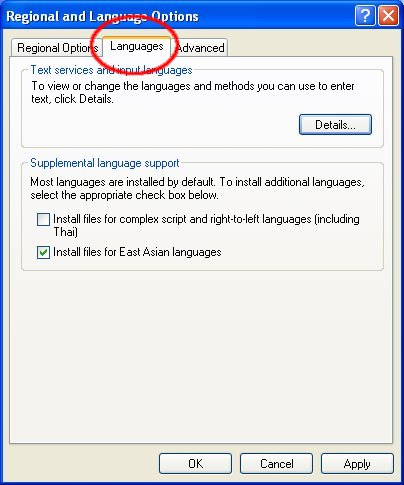
4. Check the “Install files for East Asian languages” check box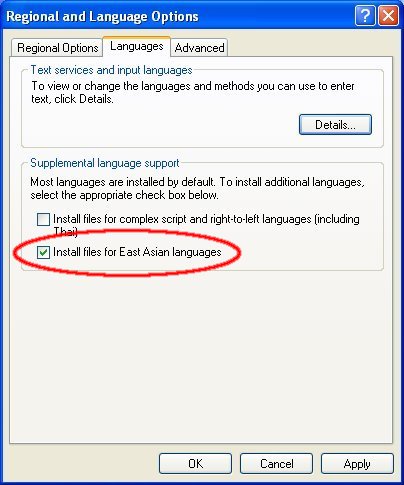
5. Display Dialog -> OK
6. Click the “OK” button on the “Regional and Language Options” dialog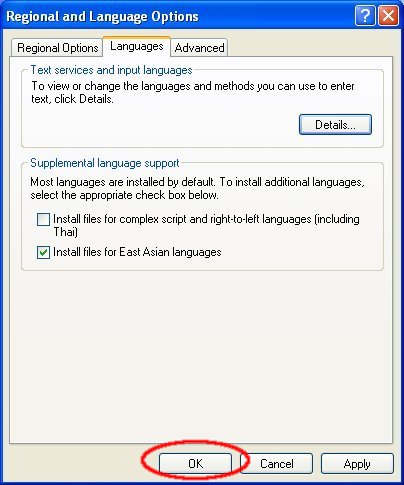
7. Insert Windows CD-ROM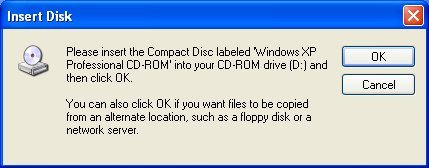
8. Wait while Windows is copying required files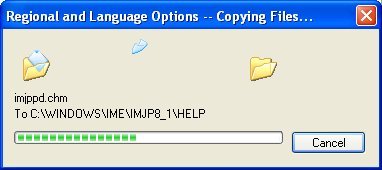
9. Restart PC
Display non-Unicode Language and Regional Option Settings
1. Go to the “Control Panel”
2. Open “Regional and Language Options”
3. Click on the “Advanced” tab
4. Select “Japanese” from the pull-down menu at the “Language for non-Unicode Programs” section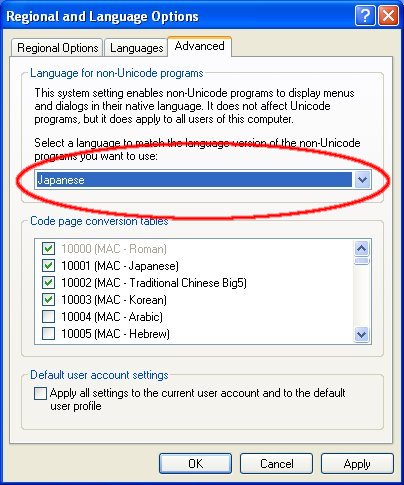
5. Click the “OK” button on the “Regional and Language Options” dialog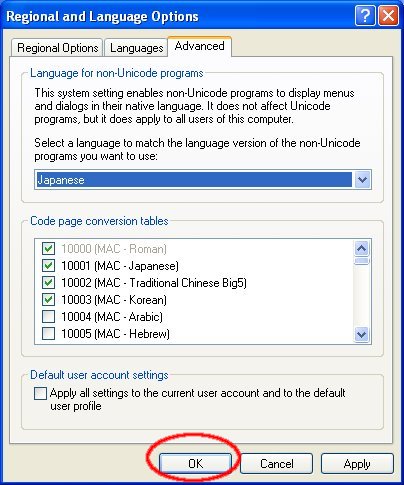
6. Restart PC
37 comments
HELP PLEASE!!!!!! (I,I)
thank for trying
thanks in advance
anyone know how to solve it???
please..
A strange message appears when I try to change the "Regional and Language Options"
http://s4.noelshack.com/old/up/toto-1be595d723.jpg
I've to do this in order to play Kimidori.
They just stay stuck in jap unable to return to english, I want to know if this locking is true and if theres a trigger or so.
Thanks to everyone who may take the time to answer
after download from mediafire? it would be easy that way thou.
I'm using windows xp.
a lot. I'm using the Local Japanese now. :)
You install Japanese and Far East language support.
Its a bunch of fonts, and dlls.
Download the files, and put into a directory called 'JLK' in your 'C:' drive. ( i.e. a folder off the root of your boot drive )
Tell it to add them and when it says to insert the CD,
Type Details, and look at the file its asking for.
Then click locate...
and navigate to the "C:JKL" directory for the files.
There should be about 100 files, and if it finds one, it can find them all.